I like it when a Komodo tech support email comes in that makes me think "Good question. I don't know the answer. I bet we could make this work though."
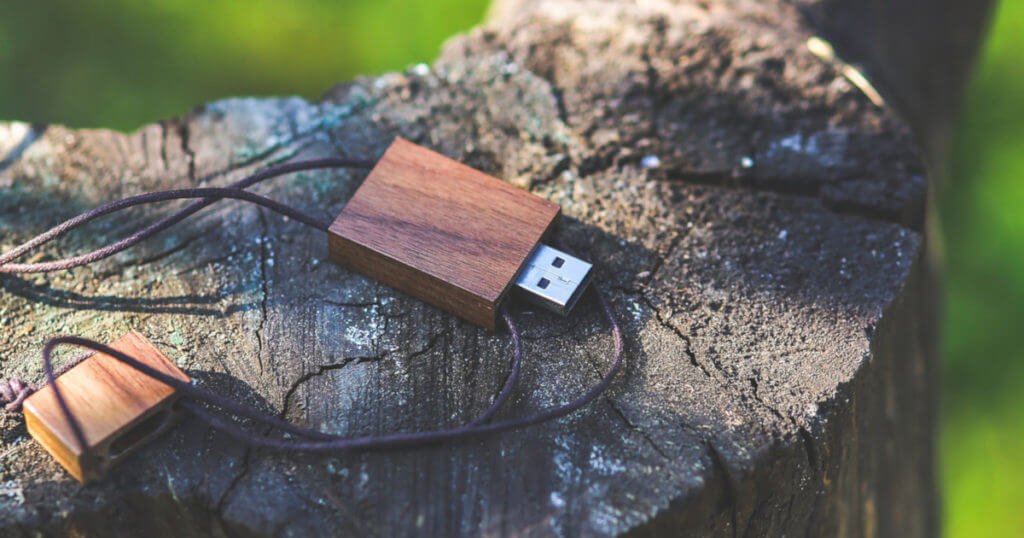
One such question arrived last week from a long-time Komodo user who wanted us to make Komodo "portable" so that he could run it from a USB stick when he was travelling. Not everyone uses a laptop after all.
A simple solution was posted in the Komodo Community forum a while back, but it didn't take into account changing mount points/drive letters from system to system (which is important for Komodo) and it wouldn't work for Komodo IDE. So, here's a solution that should work for most people.
We'll have to:
- install the software to the USB drive
- tell Komodo to put the user settings on the USB drive, rather than in the default location
- for Komodo IDE, put the license on the USB drive
- optionally, install a language distribution too
I'll show a Windows example, but the above principles will be the same on OS X and Linux.
- Install Komodo to a directory on the USB stick. For example:
E:\KomodoIDE-portableThe Windows drive letter may be different for you, and will likely change when moving from system to system, but we'll cross that bridge in a moment.
- Create the following directories in the installation base directory:
E:\KomodoIDE-portable\AppData\You don't have to use that directory name, but we'll stick with it for now.
-
Create a file in the base directory of the installation (i.e. adjacent to the Komodo executable) called 'portable.bat' with the following contents:
@echo off set APPDATA=%CD%\AppData set KOMODO_HOSTNAME=usb set KOMODO_USERDATADIR=%APPDATA%\komodo_profile START ko.exe
This is the meat of it, a batch script that sets a few environment variables that are important to Komodo, then launches the application.
- KOMODO_USERDATADIR is a special variable that tells Komodo where to look for and save profile information. If you're running Komodo Edit, this may be the only one you need to set.
- KOMODO_HOSTNAME is another special variable that you'll need if you're running Komodo 5, which saves host-specific preferences in a 'host-<hostname>' subdirectory of the profile. If you don't want Komodo to generate a new code intelligence database for each machine you work on (and you probably don't), set this variable.
- APPDATA is a Windows-specific variable that tells applications where to find user-secific application data. If you set this, you don't actually have to set KOMODO_USERDATADIR, since the default location of the Komodo profile is within APPDATA.
So there's some choice on how you set this up, but the above "belt and suspenders" approach should work.
- If you're using Komodo IDE, you'll need to put the license on there too. Komodo looks for this license in a subdirectory of APPDATA, so you need that APPDATA variable set as above (e.g. in the console using '
SET') before running the license installer.
You could conceivably make a multi-platform USB stick with installations of Komodo for Mac OS X and Linux in separate directories. You'd need to set up separate bash scripts for each copy.
We're done, right? Well, possibly.
If you're going to be using Komodo's debugging, syntax checking, and code intellgence features for Perl, Python, PHP, Ruby, or Tcl, you'll probably need the appropriate interpreter(s). You might as well install these on the USB drive as well.
If you're doing that, you should add the interpreter to the path in the same batch file. For example, if you installed ActivePerl in a subdirectory of 'KomodoIDE-portable', you'd specify the path to perl.exe with a line like:
set PATH=%CD%\Perl\bin;%PATH%
By default, Komodo will look for languages interpreters on the PATH. It's best to leave the language preference set that way in this case because, as with the user profile directory, we can't rely on the full path to the interpreter staying the same from system to system.
Your mileage may vary, but this trick worked for me and the customer who wrote in with the request. I hope it helps some of you travel more easily with your favorite IDE.
Trackback URL for this post:
Comments
This works fine, except one MAJOR thing.
Since most of the time you browse the files with explorer, hitting on one php/js or whatever supported file, it will NOT open it.
I tried addign the full path to komodo.exe in regedit, for it to work, but it does not.
No file can be opened with Komodo run through the setup.bat.
This is a big bummer, as a good portion of time, i use my file browser rather than places or the project tab (having the project on Samba, it's extremely slow through wireless, weird, i know)
Am i missing something? shoudl the file open, in regedit be pointed to the start.bat rather than komodo.exe ??
Yes, i know these options, obviously i was able to work with the files, but it's not "as easy as" just double clicking the file.
(i messed with the registry, yet no result, still getting the below)
I get an error message similar to: .. commandments lock: 183
I also noticed that in the C:\Users\USER\AppData\Local\ActiveState\KomodoEdit\6.0 a files is created, although this appdata folder should not exist, as it is a "portable" version.
I guess the file opening mechanism, is overriding the "portable" settings from the bat, or another variable might needed to be set?
I am not expecting a quick fix, if there is something that can be done, i would love to have it really full portable, including with file double clicking (hate when all apps install stuff throughout my computer and when i have to reinstall i have to pick up bits and pieces from all over)
I am sharing this for some poor soul who might have had the same issues, at least to find this topic :)
As a stupid workaround, that actually works, i also installed Komodo, Practically having the installed one and the portable one.
Now the double click works, even if i use the portable one. (Including when Komodo is closed, as i hard coded the path in regedit, to the portable one)
I use the portable, only for all my settings, snippets, macros not to get lost during a reinstall.
(and keep all these synched across comps with Syncplicity)
Rather old topic, but I have managed to run Komodo really portable and SUPPORT OPENING FILES WITH DOUBLECLICK.
This is my altered portable.bat file:
(note it must be in the same folder, where you have ko.exe!)
@echo off
:: automatically switch to script (and komodo) directory
cd %~dp0%
:: original script
set APPDATA=%CD%\data
set KOMODO_HOSTNAME=usb
set KOMODO_USERDATADIR=%APPDATA%\komodo_profile
:: pass files we want to open to Komodo
START ko.exe %*%
Hi,
My portable Komodo Edit 7 (beta) seems to be storing my settings and project info locally on my hard drive not on my usb drive. For example, if I go to another computer with my usb flash drive, I have to recreate my projects in Komodo edit.
I've used your bat file as suggested. I first installed Komodo Edit on to my usb drive and then added the bat file to the root directory and double clicked on it to create the data directories (maybe I didn't have to do the step, but what do I know).
Any ideas?
Thanks,
Sam
That still doesn't work for me :( The license file still goes to C:\Users\Ivan\AppData\Roaming\ActiveState
Komodo itself works, but when I try to move the license file out of the above directory, it won't start anymore, telling me that the license is not compatible and suggesting me to renew it. That's why I was asking for the exact directory - I can try putting the file manually there. I already tried
E:\Komodo\AppData
E:\Komodo\AppData\ActiveState
E:\Komodo\AppData\Roaming\ActiveState
E:\Komodo\AppData\AppData\Roaming\ActiveState
without any luck. The profile and everything else seem to obey the APPDATA env var.
Thanks!
Yeah, that still doesn't work :( The .lic file has to be in C:\Users\Ivan\AppData\Roaming\ActiveState for the portable version to start. It stores all the settings in the portable directory, but for some reason I cannot make it to also look for the license file in that directory.
Somehow I missed the step where the installation destination folder can be set in the installer. So that's OK now.
However, there is a remaining issue. The installer won't let me install a new copy of the program on to my usb stick (it doesn't give the option to change the directory path) if I already have the same version installed locally on my hard drive. It only allows me to either modify my existing installation or remove it. To get around it, I installed the next beta version of Komodo Edit.
It would be great to have the usb portable option in the installer to automatically configure the settings properly rather than having to manually create a bat file. How about developing an up-to-date Portable Apps version. Portable Apps only offers Komodo edit 5.1 (http://portableapps.com/node/13741)?
I found a problem with making portable Komodo IDE 7 - it doesn't look for license file in APPDATA on flash drive.
There is a workaround - just add one line in *.bat file (before start ko.exe):
set ACTIVESTATE_LICENSE=%APPDATA%\ActiveState.lic
My batch file aka "portable and oblivious", Komodo (7.1.2 atm) will ignore any Komodo install existing on the system.
Also, I didn't check thoroughly but I think with this setup it doesn't store anything on the host apart from temp stuff.
Some of the vars are superfluous but I included them just in case. (ie. PROGRAMDATA)
(set the PATH properly according to your needs)
_________________________________________
Directory Structure (at the root of the komodo install) :
- root
- user
- AppData
- Local
- Roaming
- ActiveState
- ActiveState.lic
- ActiveState
- AppData
- ProgramData
- user
_________________________________________
@echo off
set APPDATA=%CD%\user\AppData\Roaming
set HOMEPATH=%CD%\user
set LOCALAPPDATA=%CD%\user\AppData\Local
set PROGRAMDATA=%CD%\ProgramData
set USERPROFILE=%HOMEPATH%
set ALLUSERSPROFILE=%PROGRAMDATA%
set KOMODO_HOSTNAME=usb
set PATH=""
set ACTIVESTATE_LICENSE=%APPDATA%\ActiveState\ActiveState.lic
START ko.exe
hi all,
just thought i'd quickly chime in.. and share what didn't work for me.. and what did.
what did work (final batch script) is:
@echo off
set HOMEDRIVE=%~d0
set HOMEPATH=%~p0.portable
set PATH=%~dp0.;%PATH%
set ko_exe=%~dp0ko.exe
set USERPROFILE=%HOMEDRIVE%%HOMEPATH%
set ALLUSERSPROFILE=%USERPROFILE%
set APPDATA=%USERPROFILE%\Application Data
set LOCALAPPDATA=%APPDATA%
set KOMODO_HOSTNAME=usb
set ACTIVESTATE_LICENSE=%APPDATA%\ActiveState\ActiveState.lic
set KOMODO_USERDATADIR=%APPDATA%\ActiveState\komodo_profile
start "ActiveState Komodo IDE 7.1.3.74661" "%ko_exe%" %*
with a directory structure that looks like:
~/
~/komodo.bat
~/komodo.exe
~/ko.exe
~/.portable/
~/.portable/Application Data/
~/.portable/Application Data/ActiveState/
~/.portable/Application Data/ActiveState/komodo_profile/
~/.portable/Application Data/ActiveState/ActiveState.lic
..the reason that the script above did NOT work for me,
appears to be that HOMEPATH included the drive letter,
which it should not.
..any other differences are mainly just cleanup and refactor to my personal liking.